Excel dashboards and executive reports are powerful, fairly easy to design and a great way to improve your Excel and data visualization skills. Because of its flexibility, you can virtually design any dashboard in Excel exactly the way you, or the users, imagined. And, best of all, you may want to implement it yourself or consider it a prototype and ask IT to implement it.
Once you know what will the Excel dashboard be used for and what kind of metrics users expect, there are three major areas that you must address when creating it:
- how to bring data into your spreadsheets;
- how to manage the data and link it to the dashboard objects, like charts and tables;
- how to design the dashboard report.
Let’s take a look at each of them.
How to bring data into your Excel dashboard
Yes, Excel is a very flexible tool, but to create an Excel dashboard you can’t just paste some data and add a few charts, can you? You must maintain and update it and, if you want to decrease the cost associated with those tasks, you must impose some structure to your data.
Usually, the data should not be entered directly into the spreadsheet. You may copy /paste the data, but the best option is to connect the spreadsheet to the data source. There is a standard way to communicate with external databases called ODBC. You can use it to connect your dashboard to a table in Access or Oracle, for example). Here is a step-by-step tutorial on how to establish a connection between Excel and Access (this is one of the modules in my dashboard tutorials):
[fusion_builder_container hundred_percent=”yes” overflow=”visible”][fusion_builder_row][fusion_builder_column type=”1_1″ background_position=”left top” background_color=”” border_size=”” border_color=”” border_style=”solid” spacing=”yes” background_image=”” background_repeat=”no-repeat” padding=”” margin_top=”0px” margin_bottom=”0px” class=”” id=”” animation_type=”” animation_speed=”0.3″ animation_direction=”left” hide_on_mobile=”no” center_content=”no” min_height=”none”][S3VIDEO file=’http://excel.charts.s3.amazonaws.com/sample1/DDlkp2007_01_defining_regions_sound.mp4′ authurl=’false’]
(click the button on the bottom right to maximize the video)
Once you have that connection established, every time the data changes at the source it also changes in the spreadsheet, after refreshing. Keep in mind that a good practice is to minimize the amount of data you bring into your spreadsheet. If you don’t need it, don’t use it. Calculations should be performed at the source, if possible.
Data can be imported using two basic structures: a flat file and a pivot table. As a rule of thumb, I would say that a pivot table tends to create larger files but the calculations will be faster. The flat file will be smaller but, if you need complex formulas to select the data, performance will suffer (you must test this in your own project).
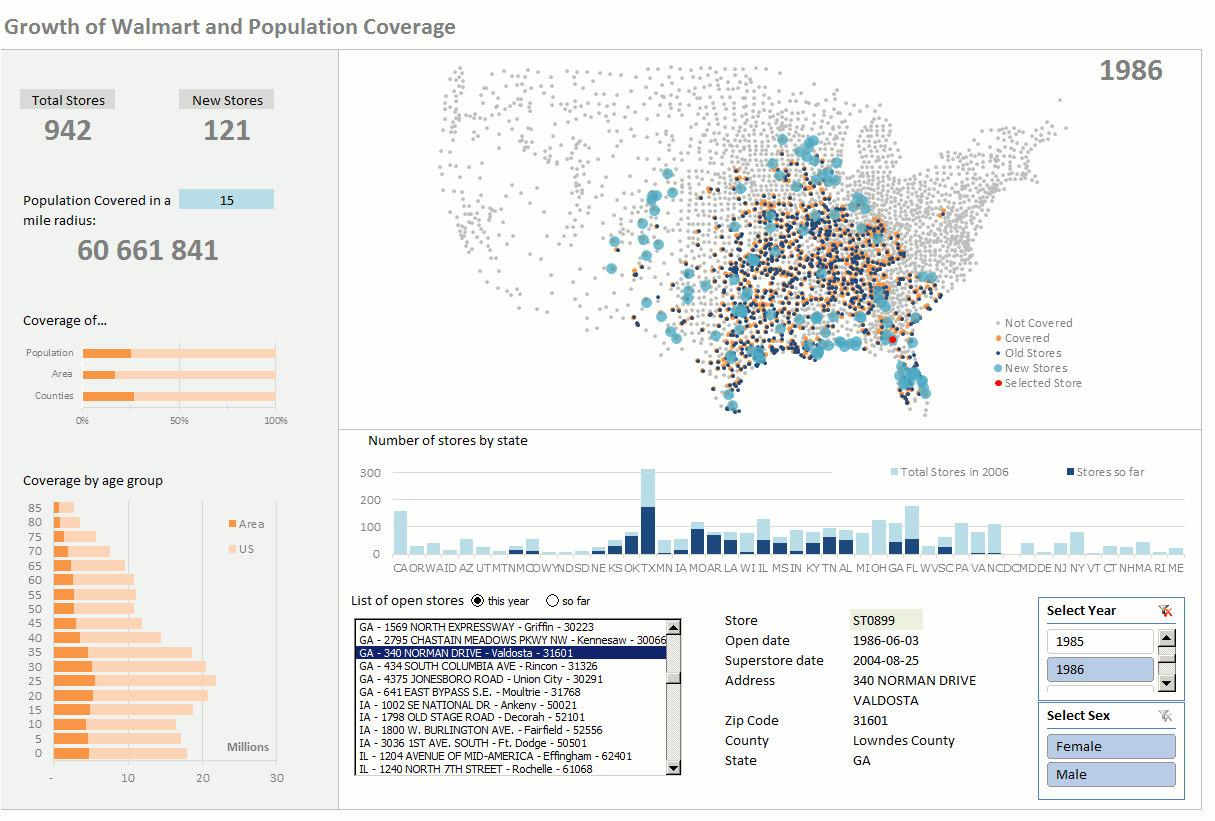
The example below shows the growth of Walmart (this is a bonus file available in the members area). The user can select a year and a radius. Then the total population (at county level) is calculated for each catchment area. Population characteristics like sex and age structure is also available.
Obviously the dataset is very large. It’s not “big data”, but 11 million records are not easily managed in Excel. I had to use pivot tables, tables and crosstabs in Access. New to Excel 2010, you can synchronize pivot tables that share the same data source with slicers, And I used them in this file. Excel tables are also great, because they greatly reduce calculation time if you have lots of formulas.
How to manage the data and link it to the dashboard objects
If you use pivot tables you can extract the data using the GETPIVOTDATA function. If you use a flat file, there is a vast array of formulas you can use, like database formulas (DSUM, DGET), lookup (VLOOKUP, MATCH, INDEX) or math formulas (SUM, SUMIF, SUMPRODUCT).
Having many formulas and calculations is dangerous to your dashboard integrity. Actually, you shouldn’t use formulas at all. 🙂 That’s impossible, of course, but you get the idea. Fewer formulas mean a safer, more reliable, easier to maintain dashboard. You can decrease this by using pivot tables. That’s one of the reasons I choose them by default.
Named Ranges
Do I have to tell you that you should document your work? OK, I’ll tell you: yes, you should. But you can simplify that boring task by using named ranges. I am sure this is a familiar example: “=Sales-Expenses” is better than “=$G$4-$H$5”.
Named ranges not only help you making your formulas cleaner and easier to read, but they also play a key role in data management for Excel dashboards. Example: let’s say that the next update adds a new column to your table. If you don’t use named ranges you’ll have to change every single formula and add that extra column manually. With dynamic named ranges, the extra column is immediately available. This means less and more reliable work.
Dynamic Charts
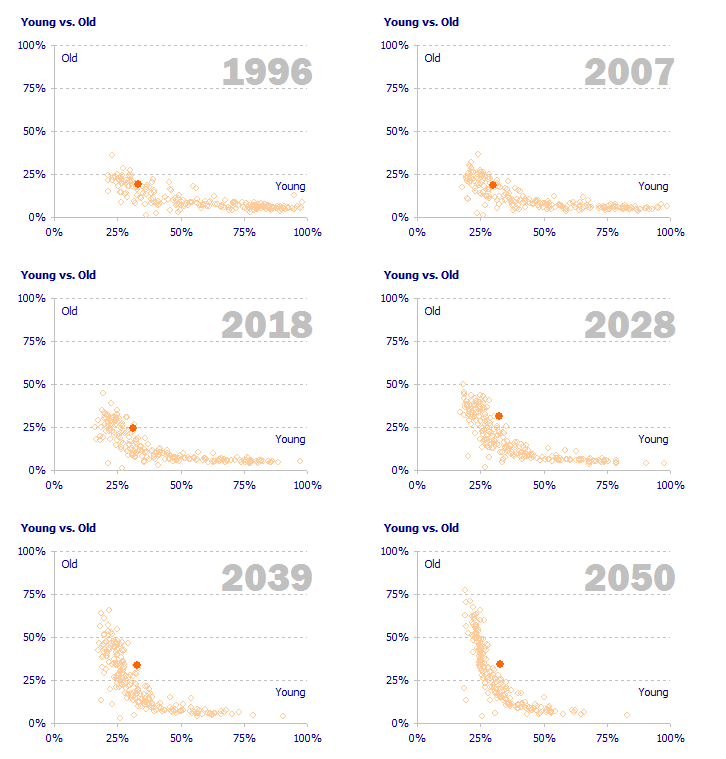 I am a truly believer in dynamic charts. Dashboards that the user can’t interact with don’t make much sense to me. All my dashboards have controls to change markets, change products, change sales territories, whatever. What is important is that the user must be able to interact with the dashboard and build his/her knowledge by exploring the available data. Some managers prefer a static dashboard (perhaps just a sheet of paper, or a PDF file), but even then you should implement interaction, because it will be easier to create those static reports (you can automate them).
If you are creating interactive charts you will probably need dynamic ranges. You can do it using the OFFSET() function. In the video above you can see an example. The next video is also a a sample of my dashboard tutorial, where we discuss how to make a dynamic chart (also one of the modules in my dashboard tutorials):
[S3VIDEO file=’http://excel.charts.s3.amazonaws.com/sample2/ddvba2007_06_growth_sound.mp4′ authurl=’false’]
Macros
OK, you are not a programmer (I am not) but you should consider using some macros to speed up some repetitive tasks. Also, some cool things that you can add to your dashboards can only be done using macros, like greeting the users and selecting the right profile when they open the dashboard (you may want to read the discussion around the use of VBA in Excel dashboards).
Often all you need to do is to record a macro, add a FOR NEXT or a FOR EACH loop, make simple changes to make sure the macro points to the right cell. If you’ve never recorded a macro, here is a very basic example:
Sub Macro1()
ActiveCell.FormulaR1C1 = "=ROW()*5"
End Sub
So, in the active cell, enter the formula “=ROW()*5”. Instead of the active cell, let’s tell Excel where we want the formula, using Range instead of ActiveCell:
Sub Macro1()
Range("A5").FormulaR1C1 = "=ROW()*5"
End Sub
Now we need to enter the formula 500 times, starting in cell 5:
Sub Macro1()
For i = 5 To 505
    Range("A" & i).FormulaR1C1 = "=ROW()*5"
Next i
End Sub
This is all you have to do, most of the time:
- Define what cells should be selected, using the RANGE function;
- Use a variable (i) instead of row number;
- Add a loop.
It’s not always this simple, but you don’t have to be a programmer to take advantage of Excel macros, and probably there is the right macro waiting for you. Search the web and you’ll find it. Suppose you want your dashboard to display a specific market when a user opens the file. You have a table assigning markets to users, but how do you identify the user? Well, you could try these macros.
How to design the dashboard report
If you like the kind of charts that you find in marketing-oriented tools like Crystal Xcelsius let me tell you this: they don’t work. There is a first wow! and then their uselessness starts creeping in. This is not a matter of opinion only: I tried (and failed) to replicate my Demographic Dashboard (see below) using Xcelsius and detailed the process in a series of posts (1, 2, 3, 4, 5), so I know why these tools are useless for serious work. Don’t try to use Excel to mimic them.
You may still be using Excel 2003. Excel 2003 chart defaults are ugly and you should avoid them like the plague (and make sure you select the acceptable formats). Excel 2007 and 2010 are much better, but they still need some work. Throughout this blog you’ll find many charting tips, and tips to improve your Excel dashboard, so I will not elaborate much on this. The basic premise is this: a chart is used to discover actionable patterns in the data, and you should do your best to show those patterns.
This means that you should remove everything that has no added value (3D effects, backgrounds, etc), create a hierarchy of focus and context data (make relevant data stand out, using color carefully) and add at least a basic form of interaction (let users select the series, for example).
Resources
The reference in dashboard design if of course Stephen Few’s book, Information Dashboard Design. Other recommended reading are John Walkenbach’ Excel Bible (2003 or 2007) and Excel Charts (2003 or 2007); Tomothy Zapawa’ Excel Advanced Report Development (2003 or 2007); Michael Alexander’s Excel 2007 Dashboards and Reports for Dummies and Jon Peltier’s blog.
More than One Way to Skin a Cat
While you should have a clearly defined framework (allow interaction, connect to external data sources, focused design, effective chart formats) the way you implement is pretty much up to you. That’s what I wanted to prove with my video tutorials. They use the same data set, and a similar output, but each one uses a different set of techniques:
- The VBA version uses pivot tables to get the data and a few recorded macros to synchronize them and process user input;
- The Lookup version uses a spreadsheet database (basically a table that you paste into a sheet) and lookup functions (VLOOKUP, MATCH, OFFSET) to get the data for the dashboard report. Personally I don’t feel very comfortable with spreadsheet databases (more maintenance, more error prune, slower) but it is a good starting point to learn advanced Excel techniques (and sometimes is it your only option).
After some discussion on the merits of using VBA (Excel Dashboards: Do You Need VBA?) I decided to make a VBA-free Excel dashboard; It mainly uses pivot tables and the powerful GETPIVOTDATA function. It is a well balanced version: it is slower than the previous version but since it doesn’t use VBA some users don’t have to leave their comfort zone.
The context will help you to decide the best way to skin your cat, but feel free to test multiple paths. In general, a large number of formulas will degrade performance, while VBA improves it (but may be off-limits for you).
An Excel Dashboard is the Perfect Excel Learning Tool
Think about it: when you make a dashboard you need to know more about your organization, you must interact with users and managers, analyse data, make charts, connect the dashboard to the formal information structure (if possible), use advanced formulas and functions… It’s a complex and usually very enjoyable task for an information worker. You have to use a wide range of skills, and that can only improve your position in the workplace.
This is why an Excel dashboard is a great business tool and also a great learning project that goes beyond Excel and helps you to improve your lifelong skills. Start making one today!
Shameless plug: try my step-by-step video tutorials and free data visualization book!
My Excel dashboard tutorials will guide you from a blank sheet to a fully functional dashboard and you’ll be able to apply the techniques to your own projects in no time. Here is an overview:
- 2 tutorials;
- 24 modules;
- 2 free dashboards;
- more than 4 hours of step-by-step video tutorials covering dynamic ranges, advanced pivot table techniques, interactive charts, advanced Excel functions and more;
- 24-month access.
Bonus File: Walmart Growth
You may have seen the Walmart stores dataset around the web, but things become really interesting (from a business point of view) when when you connect this dataset to population data: how much American population is covered by a store in 10-mile radius? What about a 5-mile radius? You can use this file to explore your own data (ask me how)!
____________________________
A match made in Heaven? Get the dashboard tutorials and get a free copy of my data visualization book
Now, while you learn how to make Excel charts like a pro, you can apply these best practices your dashboards. Get access to two dashboard tutorials, more than three hours of step-by-step videos that will help you unleash your creativity and create great dashboards using Excel. And you also get access a growing number of bonus files that you can explore and use to improve your Excel skills. I’m and updating my dashboard tutorials to better reflect what I wrote in the to my data visualization book and to take advantage of Excel 2013 and 2016. To mark this I’m giving the Kindle version of my book away to new users. Hurry! Grab one of the remaining digital copies! Kidding, but this campaign will not last for long.]
(Two dashboard courses only $97.00 and a free electronic copy of my book. 24-month access, 30-day, no questions asked, full money-back guarantee. Pay securely with your Paypal account. You’ll get a message from Amazon with a link to your gift.)
[/fusion_builder_column][/fusion_builder_row][/fusion_builder_container]
This is great. Thanks for sharing your knowledge!
“by the end of the trial period I must have a working Crystal Xcelsius version of…”
If you *need* an Xcelsius version of your dashboard, then stop reading this blog. Jorge is showing how to design an information-dense but practical and usable one-screen data display. Xcelsius is good for dashboards and cockpits and other glitzy texture-rich but information-neutral decorations.
Jorge –
This is a good start-up example of what a dashboard can really be.
Thanks Jon. I hope you don’t find my charts too advanced for you…
No matter what we say, people will keep using Xcelsius and similar tools for eye-catching hum… things, create 2D pie charts in Excel and put flying clip art in their presentations.
The only strategy that could really work regarding visualization is to show the options, explain the differences, make people understand the trade-offs and let them decide.
Since everyone uses Excel, it makes sense to use something like my dashboard as a benchmark and try to replicate it with other tools. By explaining and discussing each step you end up either proving yourself wrong (if you don’t like Xcelsius) or undermining it from inside because you expose its weaknesses in several standard tasks.
If you like this stuff then hopefully you might also like the stuff we do at http://www.instantatlas.com – based on many of the same visualisation principles championed by people like Stephen Few but, like XCelsius, does use Flash for interactivity.
You can see examples for world population on http://www.geohive.com, a site we like and we have supported.
You are a solution provider
Is there anyway to export the dashboard data into an excel spreadsheet? we receive a dashboard created in excel but we want to export it into a spreadsheet. Can it be done? Is it difficult? thahk you
Dee: I am not sure if I understand your question. If you mean exporting the data from the Demographic Dashboard to a new spreadsheet, you can just copy one of the pivot tables to the new workbook and use it the way you want.
Another option is to copy the data from the Access query and past it into the new sheet. Please note that there are more than 200,000 records in that query, so they will not fit into the 65 thousand rows you have available in Excel (try the crosstab query with years in columns).
Hope this helped.
The main problem with Excel dashboarding is keeping them updated as new data arrived.
I think I;ve alreadt spent 40% of my professional life redefining ranges for charts and dashboards in Excel. 🙂
Dale
http://www.sisense.com
“Dashboards, Reports and Guided Analytics”
Dale
Yes, it can be a problem, but if the structure doesn’t change much you can manage updates with dynamic ranges. Another option is to make sure that range width or height doesn’t change (for example, by showing only the last 24 months).
Thank you dale
I tried the Prism product in your comment
and i have to say im impressed, created all my excel dashboards (100)
in a few hours!
Do you know how much it cost?
Eian
Jorge – Great work on this. I purchased the training and it has been very helpful to me in setting some things up. I’ve got a question for you – in your training you use offset named ranges to retrieve pivot table data. The ranges use absolute references. This works on your tables, since changing a country doesn’t change which columns show in the pivot tables. I’m working on something where I’m pulling from data submitted by companies. I use a macro to change the company name in the page field in the pivot table, and then pull the data from the pivot. The problem is that if we don’t have data on a company for a particular metric, than that column in the pivot table disappears, and the named range is now pulling a different metric. Is there anyway to reference a column of data so that no matter what column it ends up in, excel will still grab the right data? The only workaround I’ve thought of for this is to make one sheet for each column of data. Would love any suggestions you have.
Thanks,
Sam
Thanks Sam. I usually solve that problem by selecting the field and turn on the “Show items with no data” option. This way the table structure is kept and you can easily handle the missing data.
DashboardGeek (nice name),
The product is still in beta so they don’t charge for it yet, but I contacted their support and they said the generally, a single authoring license goes for about 100 US Dollars a year.
Excellant piece of information. Thanks for sharing the same.
Hey,
I picked up this link in from the article about 14 misconceptions of charts. But since reading it – I must recommend people looking at this.
http://sparklines-excel.blogspot.com/
I downloaded and started to use it just last week and published a highly informative dashboard in hours, complete with spark lines and bullet charts.
I’d really like to get a copy of the three versions you have listed here.
I’m interested in creating more effect reports for my job.
Thank you,
Glenn
Glenn, you just have to leave your email on the right side bar and they will be sent to you.[Update: This is no longer available.]As always great post. thanks
This is great, just what I’ve been looking for. I’m a very basic developer, with goo HTML experience but little experience in actual coding technologies. I get leads that come from our distributor site, who are interested in buyng one of our distributorships. I want a bashboard so that I can retrieve data from that persons geographical area. This will give me how many business are in there are and the population as well as Business growth.
I also want to create a basic customer service data base as well, to retrieve thier data I have entered into excell. Thanks alot.
Joe
Hi Jorge,
I accidentally discovered your site and I am super impressed. I am a data analyst at e-commerce company and am looking to streamline and and automate reports for executives.
I am trying to expand my understanding of excel and building up my repetoire so to speak and I realize that pivot tables and VBA are key. The demographic dashboard is an excellent learning tool for people like me who are looking to learn the “integration” bit by example. And, your example is extremely clean and non-convoluted. So thank you, I am looking forward to learning a lot from your site and tutorials.
I have two questions for you:
a) In your everyday work how do you deal with scope creep from business users after implementing a very tedious dashboard or solution.
b) How long did it take you to finish the demographics dashboard, from concept to completion.
@ Rachana: thanks for your great feedback. I wanted to show how to synchronize several pivot tables using simple VBA, but the other versions show that you can get similar results without code. I would try to do find VBA-free approaches and use code when there is no other choice. For example, I usually run a macro to detect the user id and filter the data for that specific profile. That’s something you can’t do without code.
I don’t really have a good answer regarding the best way to deal with scope creep. I try to create very specific information products that answer very specific business needs, leaving everything else outside. I usually don’t need more than some user feedback regarding the use of the tool. I would say that a project like the demographic dashboard does not require more than a month to implement (and a few more days/weeks for testing).
The challenge is not so much in the Excel techniques (well, only a little ;-)), but it is more in the creativity and empathy of the dashboard designer.
Thanks Jorge, for your brilliant solutions!
Jorge – An excellent presentation.
I frequently use live data from databases via odbc and tuned via MS query to deliver targeted and summarised business information for live reporting. I also use pivot tables, and have found the GETPIVOTDATA function provides dynamic data, provided you are prepared to link the parameters to cells outside the table, and of course, show items with no data. I have never needed to use named ranges. Because most business information is highly structured, I can usually provide a screen full of charts from just one pivot table, then using a selection box or boxes on the dashboard to return the selected data via the GETPIVOTDATA function.
Hi Jorge
I am trying to build dashborads for revenue analysis (product wise), employee performance, budget analysis etc..Can I use the same demographic dashborad for same or would it have to built in a different manner.
Pl advice..
Pooja
@Pooja: I believe that an Excel dashboard is defined by the way it handles the data, and not by the data itself. The three demographic dashboards exemplify how to get the data (connecting to an external data source or creating a spreadsheet table), how to go from there to the chart data sources and how to create the interactive user interface. You can use the demographic dashboard to see how these techniques can be used to work together. Your dashboards will surely be very different, but you can use similar techniques. For example, I’ve been creating employee performance dashboards for several years and they typically use very different sources but don’t need frequent updates (monthly or quarterly basis), while sales would need a single data source but may need daily updates. In the first case, I usually use spreadsheet tables, and in the second case I connect a pivot table to the Oracle database.
Ta..I use Navision as my database. Can you help in buliding good dashboards for revenue/gross margin analysis. Where from your website can I learn how to create dashboard other than specified above.
Pooja
Pooja: I am not familiar with Navision, so I can’t help you with the specifics, but if you search for something like “Navision ODBC Excel” you’ll find a tutorial on how to link Excel to your Navision tables. The Demographic Dashboard uses the Access ODBC, but the process should be similar. After you get your data into Excel you can use the usual Excel formulas to create your dashboard.
Hi Jorge,
Your dashboard ROCKS!!
Just finished the dashboard tutorial and cant wait to get into creating my own for our data. I have searched for a long time for a good quality tutorial that covers all the essential functions for creating reports and reporting tools. This is the most amazing tool for learning advanced Excel I have come across and is also a shining example of Excel best practices. I wish I had this years ago. You have a great understanding of how to communicate and teach complex information easily and clearly.
Thank you.
T
on
http://www.hichert.com/de/software/exceldiagramme/55
you can find a lot of examples (downloadable) of excel-charts which could be used in dashboard
on
http://www.hichert.com/de/consulting/dashboards you find selctions of well-done dashboards and not-so-well-done….
“you just have to leave your email on the right side bar and they will be sent to you.”
Where is this location? I, too, would love to get these templates to learn from.
Thanks!
Thanks Sam. I usually solve that problem by selecting the field and turn on the “Show items with no data” option. This way the table structure is kept and you can easily handle the missing data.
Sir,
This is an amazingly unbelievable dashboard.
1. Would we able to replicate this dashboard after going thru your tutorial? How long is the tutorial?
2. Does the price include with and without VBA?
Manoj: Thanks.
1. Yes, you will;
2: The tutorial is for the VBA dashboard only; the non-VBA tutorials are coming soon.
Thanks for your reply.
1. I believe I did read that the files for the non VBA and the non pivot tables would also be supplied in the same package. Is that correct?
2. If yes, then I presume that these files will contain the source data and all the formulae to enable us to study the construction of the dashboards on our own since the tutorial is not available. Am I right?
Jorge – Thanks for the great post. Even though we all use Excel every day, it’s easy to forget how powerful it really is for analyzing and reporting information. Dashboards in Excel are really great – they are more flexible than flash or ajax based dashboards because users can – with the familiarity of Excel – extend the report to a “what if” tool by experimenting with new values, etc.
Very Informative…!!
Its a good start for my first Production Planning Dashboard.
Thanks Jorge..!!
This is very well organized dash board tutorial, I like it as a learner VBA Programmer, this will surely help me to build my first Dashboard at my new job. Thanks for sharing valuable information.
Its very beneficial for anyone who need to learn about dashboard and excel. I was thinking that I have so much knowledge in MS excel but after reading your blog i learned new things and I realized that we need to update us everytime.
Thanks Jorge.
It is very beneficial for anyone who need to learn about dashboard and excel. I was thinking that I have so much knowledge in MS excel but after reading your blog i learned new things and I realized that we need to update us everytime.
Thanks Jorge.
Great Blog, Jorge.
One question. Do you know if and how it is possible to get rid of the excel menu in an excel dashboard? I know there is this function that helps doing it, but you first have to open the dashboard in excel and then you can get rid of it, but is it also possible to do something so that you don’t have the menu each time you open it?
thanks!!!
good job
excellent!!!
I bought the membership, however I don’t see the two dashboards you say you’ll provide with the program. Where can I locate them and able to download them and learn form them….
Sinan: All the files for download are in the Resources modules. Check there and let me know if you nee any help.